
Now, Daybridge lives in your Mac's menu bar
See a countdown to your next event, glance at the rest of your day, and join calls without opening Daybridge.
 Kieran McHughFounder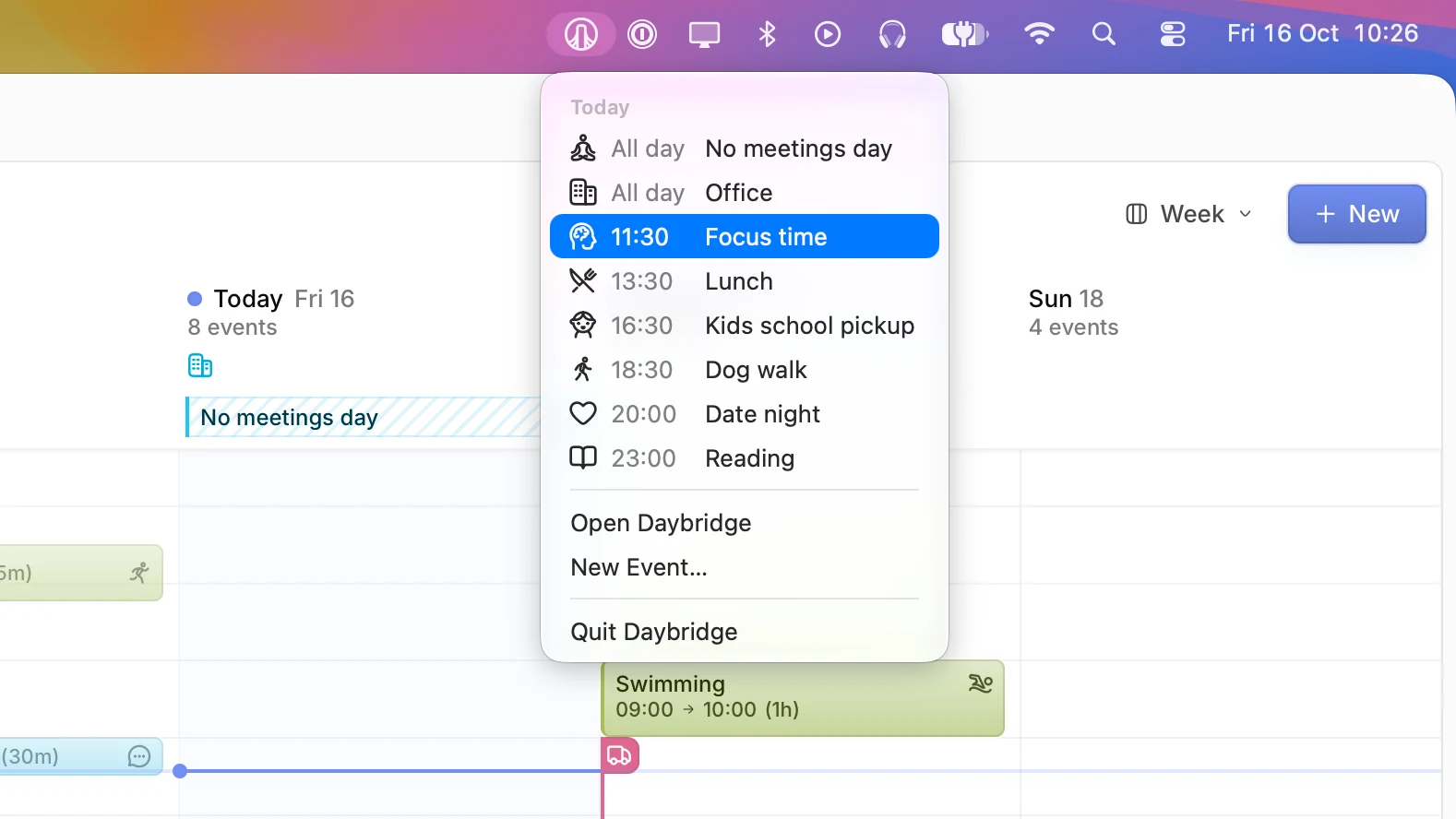
Daybridge for Mac now has a home in your menu bar. You can see what's next without switching windows, and the rest of your day is one click away.
Beside the Daybridge icon, a countdown tells you how long you have until your next event starts. Once it's under way, it shows how much time is left. Click the icon to see the rest of today's events, each with its start time and icon. When today is done, the menu shows tomorrow's events instead, so the evening you check it is the evening you plan for the morning.
Click any event to open Daybridge with its details ready. If a meeting with a video call has started, you can join the call straight from the menu. There's also a shortcut to create a new event.
The menu bar follows the tab you're using in Daybridge. If you've set up a tab to show only your work calendars, that's what you'll see in the menu bar too.
Close the window, keep your calendar#
Closing the Daybridge window now keeps the app running, so your menu bar stays up to date and your calendars keep syncing in the background. To quit completely, choose Quit Daybridge from the menu bar or press ⌘Q.
Try it now#
The menu bar is available in version 2.0.29 of Daybridge for Mac, which needs macOS 14 Sonoma or later. If you already have it, it updates automatically.
Let us know your feedback and how you get on via our Discord community or in-app feedback on any platform.